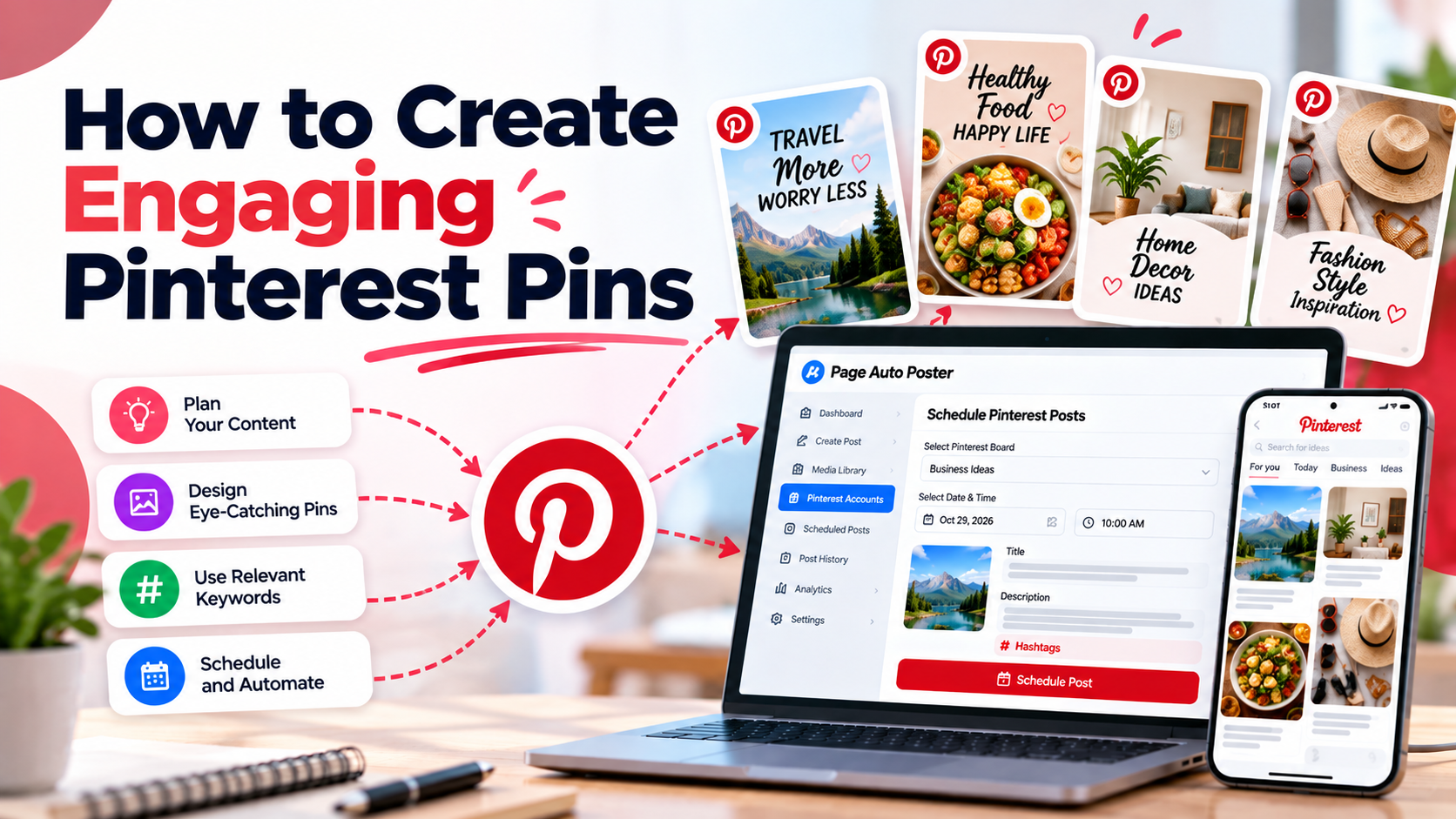
A Pin has a few seconds to earn attention in a crowded feed. The good news is that engaging Pins follow a handful of repeatable principles. This guide covers the image, the text and the link.
Start with the right format
Pinterest is a vertical, mobile-heavy platform. A tall image, commonly a 2:3 ratio such as 1000 x 1500 pixels, takes up more of the feed than a square or wide image. Check Pinterest's current guidance if you want to confirm recommended sizes, since platform specifications can change.
Design for quick understanding
One idea per Pin
A Pin that promises one clear thing is easier to understand than one that tries to say everything. Decide what the viewer will get: a recipe, a checklist, a product idea, a how-to.
Use a clean, readable text overlay
- Keep the headline short enough to read at a glance on a phone.
- Use high contrast between text and background.
- Limit yourself to one or two fonts so the Pin feels cohesive.
- Leave breathing room around text rather than filling every corner.
Choose a strong visual
Use a sharp, well-lit image that relates directly to the topic. Show the product in use, the finished result or a clear example. Avoid cluttered backgrounds that compete with your headline.
Write a useful title and description
The image gets the first look, but text helps Pinterest understand what your Pin is about and helps people decide to click.
- Title: state the topic plainly and put the main keyword near the beginning.
- Description: write one or two natural sentences explaining what the viewer will find, and include related search terms where they fit.
Page Auto Poster can generate Pinterest titles and descriptions from a keyword, which is a good starting point. Edit the result so it sounds like your brand and accurately describes the page you link to.
Link to a page that delivers on the promise
An engaging Pin that leads to an unrelated page wastes the click. Link to the specific product, article or landing page the Pin shows, and make sure that page loads quickly and works well on mobile.
Create variations, not copies
For an important page, make several Pins with different images, headlines or layouts. This lets you see which style resonates without publishing the same Pin repeatedly. With scheduling, you can space the variations across days or weeks.
A quick Pin checklist
- Vertical image with a clear subject.
- Headline readable on a small screen.
- Title and description that match what people search for.
- Destination link that matches the Pin.
- Correct board selected.
If you prefer not to start from a blank canvas, the image creator and your own uploads can both be used when preparing Pins. Read more in our guide to scheduling content to keep a steady flow of new Pins.
Share This Article
Was this article helpful?
Let us know so we can keep improving our guides.